How to Use InVideo AI: Step-by-Step Guide for Beginners
Creating eye-catching videos no longer requires expensive equipment or advanced editing skills. Thanks to InVideo AI, you can produce high-quality, engaging videos in just minutes — all powered by artificial intelligence.
Whether you’re a complete beginner or just looking to save time, this guide will show you exactly how to use InVideo AI, so you can start creating scroll-stopping content today.
What is InVideo AI?
Before we dive in, here’s a quick overview:
InVideo AI is an online video creation tool that uses artificial intelligence to generate full videos — including scripts, visuals, voiceovers, and music — from a simple prompt or topic.
It’s ideal for marketers, content creators, educators, and anyone who wants professional videos without spending hours editing.
Step 1: Sign Up for an InVideo Account
Go to InVideo’s website and sign up for a free account. You can use your email or sign in with Google for quick access. The free version gives you limited features, but it’s great for testing the platform.
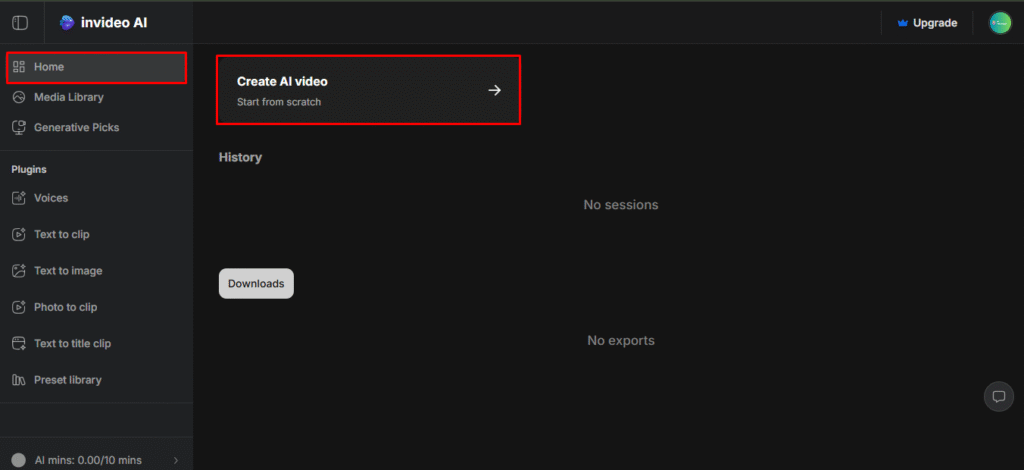
Step 2: Choose the AI Video Assistant
Once you’re inside the dashboard, you’ll see various options. Click on “AI Video Assistant” or “AI Text-to-Video.” This is where the magic begins.
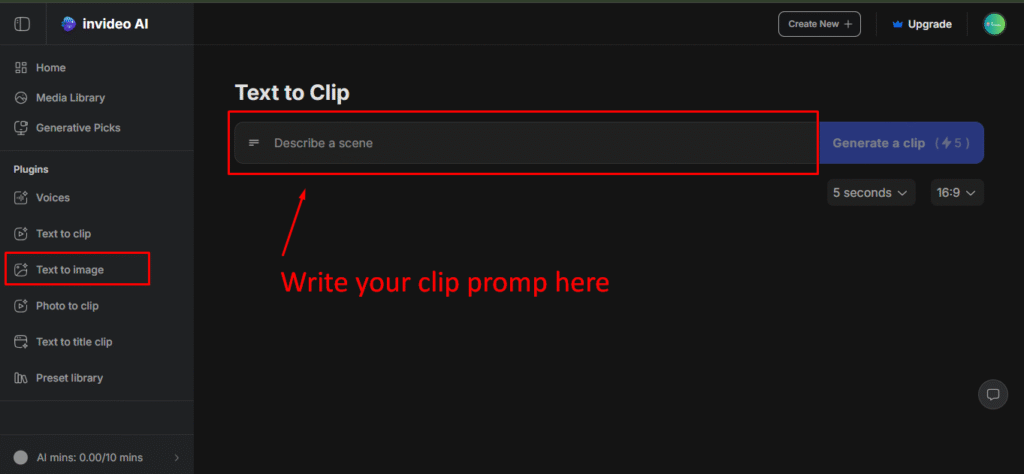
Step 3: Enter Your Prompt or Topic
You’ll be asked to input a prompt or topic. This can be as simple or specific as you want.
Example Prompt: “Top 5 tips for growing on Instagram in 2025”
The AI will generate a script, scene suggestions, voiceovers, and even recommend visuals. You can also tweak or edit any part of the content it produces.
Step 4: Choose a Voiceover (Optional)
Want narration? Choose from InVideo AI’s built-in voiceover library. You can pick different languages, accents, and tones — from friendly to professional.
🎤 Prefer your own voice? You can upload your own recording or skip the voiceover altogether.
Step 5: Customize the Look and Feel
Now that the video is built, you can customize:
- Fonts and colors to match your brand
- Add or remove scenes
- Upload your own media (logos, product shots, etc.)
- Adjust transitions and timings
Even though the AI does most of the work, you still have full control if you want to refine the final product.
Step 6: Add Background MusicInVideo has a massive royalty-free music library. Choose a track that fits your mood — corporate, upbeat, dramatic, etc. Music can make or break your video, so don’t skip this part.
Step 7: Preview and Export
Click “Preview” to watch your video. If you’re happy with it, hit “Export.”
Free users will have a watermark, but you can upgrade to remove it and unlock HD quality.
Pro Tips for Using InVideo AI More Effectively
✅ Use clear, focused prompts.
✅ Combine with trending topics for better reach.
✅ Repurpose blog posts into videos.
✅ Keep videos short and engaging (under 2 minutes works great for social media).
✅ Use the same template series to build a cohesive brand presence.
Final Thoughts: Is InVideo AI Easy to Use?
Yes, incredibly easy. Whether you’re a solopreneur or part of a content team, InVideo AI saves time and reduces production costs — without sacrificing quality.
With just a few clicks, you can go from idea to share-worthy video, making it perfect for social media content, ads, product explainers, and even YouTube videos.
If you need a learning course of Invideo AI click here or contact to our support.


